
 Available on the Chrome Web Store
Overview
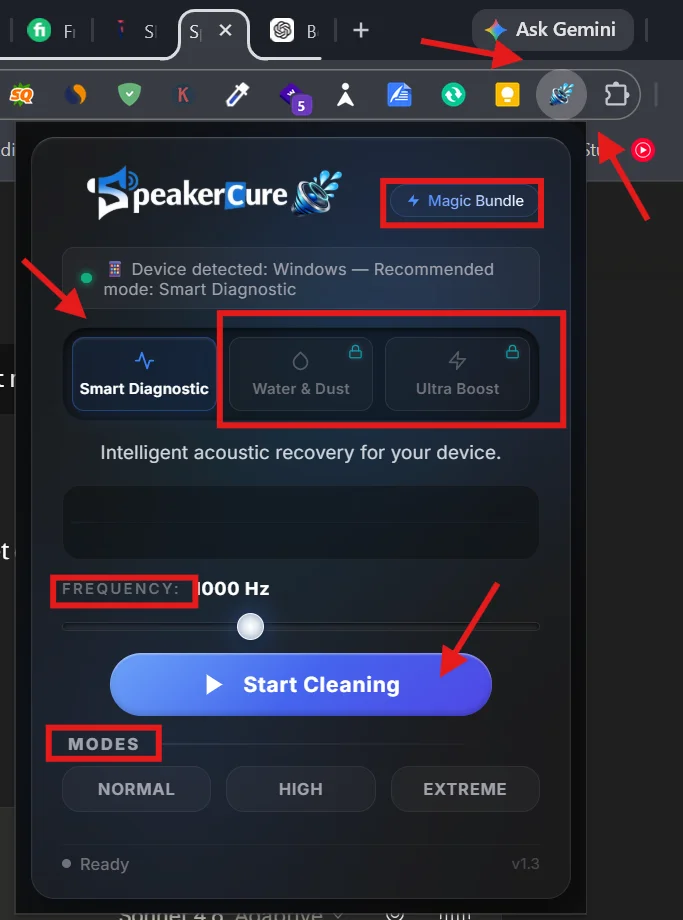
Speakercure extension is installed in the Chrome toolbar. Whenever you feel your device speaker is muffled dusty - One click on the extension icon, select mode & start cleaning.
Features:
- Cleans speakers with calibrated sound frequencies.
- View the real-time frequency visualizer.
- Detects your device and OS & recommends the best cleaning mode for it.
- Works on most of the legit browsers.
- Available on Chrome Web Store.
- Also includes in Magic bundle (No limitations).
Multiple Modes for Different Cases:
Smart Diagnostic
General cleaning
Water & Dust mode
Moisture and dust clearance
Ultra Boost Zed
Stubborn speaker issues
💡 You just need to login to use the last 2 modes. Sign up or unlock the Magic Bundle for zero limitations.
Installation Guide
Click "Add to Chrome - Free" above to open the Chrome Web Store listing.
Click "Add to Chrome" on the store page and confirm the prompt.
Pin the extension to your toolbar by clicking the puzzle icon in Chrome for one-click access.
📱 Smartphone & Mobile Users
Chrome extensions are only supported on desktop browsers (Windows, Mac, ChromeOS, Linux). For mobile device speakers:
✅ Now Live on Chrome Web Store
SpeakerCure is officially published. Install it for free and start cleaning your speakers in one click.
Add to Chrome - Free →Details
Why a browser extension for laptop speakers?
Laptop speakers collect dust in a different way from phone speakers. They usually sit under a perforated grille next to the keyboard or along the bottom edge, where crumbs, lint and pet hair settle every day. Over time this layer dampens the high frequencies, so voices on calls start to sound flat and music loses its detail. A short burst of low frequency sound makes the speaker cone move further than normal playback does, which can shake loose particles that are sitting on or just behind the grille.
The extension puts that tool one click away. You do not need to open a new tab, find the website and then return to your work. Click the icon, choose a mode and the tone plays straight from the popup. It uses the same Web Audio API engine as speakercure.com, so the frequencies are generated live instead of being streamed as a recording.
Before you run a cleaning tone
- Unplug headphones and turn off Bluetooth audio, otherwise the tone plays through the wrong device.
- Set the system volume to around 80 to 90%. Very high volume on small laptop drivers adds nothing but rattle.
- Tilt the laptop so the speaker grilles face downward if you are clearing liquid, for example after a spill.
- Wipe the grille first with a dry, soft brush. Sound helps with loose debris, not with sticky residue.
When sound cleaning will not help
If there is no sound at all, or only one side works, the cause is usually software: a wrong output device, a muted app, or an outdated audio driver such as Realtek. Cleaning tones cannot fix that. Crackling that gets worse at high volume can also point to a torn speaker cone. In those cases, start with our guides on laptop speakers not working and laptop speakers crackling, or check each channel with the left and right speaker test.
Privacy
The extension only asks for two permissions, activeTab and scripting. It plays audio from its own popup, and the only page it ever talks to is a speakercure.com tab, to check whether you are signed in for the Pro modes. It does not read or collect other websites you visit. See our privacy policy for details.
Compatible Browsers
Support & Help
Have questions, feature requests, or need help recovering your speaker?
Contact support team